Use a OneNote checkbox for work you will finish while reviewing the page. Use an Outlook task if your compatible desktop setup is where you track deadlines. Use a dedicated task board when you need to see actions from several pages in one schedule, with the original decision within reach.
Try a checklist on the original page
In the meeting note, give “Send the revised brief by Thursday” a To Do tag. Under it, keep the decision to limit the workshop to two sessions. Reopen the page and mark the checkbox once the brief has been sent.
A OneNote To Do tag is a checklist item in the notebook. In a supported desktop edition, Find Tags can collect tagged items. A date written in the note is still text, so use a separate scheduling step when you need a reminder.
Put one deadline into the place you check every day
In a supported Windows desktop OneNote and classic Outlook setup, select the action and use Outlook Tasks to set the flag. Open Outlook and verify that the task appears. Check completion from one side and confirm it on the other after sync. OneNote for the web lacks this Outlook command.
For the independent board, create the action in TodoNote, set Thursday as the deadline and Wednesday as the start if you plan to work on it then. Put the scope decision in the task note and keep a link to the original meeting page if the account can access it.
| Option | Where progress is checked | Where the context lives |
|---|---|---|
| OneNote checkbox | Meeting page or desktop tags summary | Original meeting page |
| OneNote Outlook task | Classic Outlook Tasks | OneNote page and task flag |
| TodoNote task | Dated board | Task note and linked meeting page |
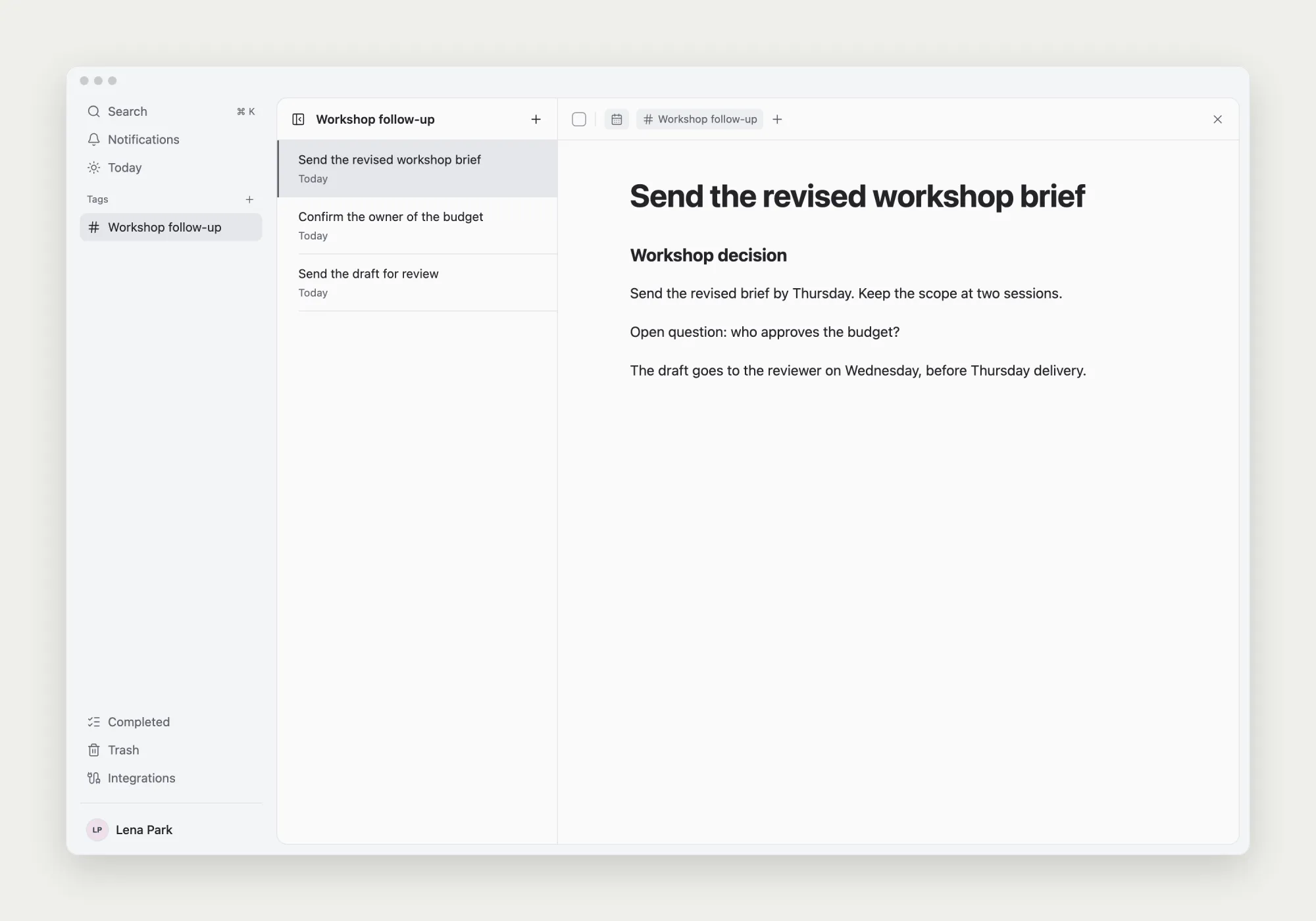
Check what happens when a second meeting adds work
Add one action from a different meeting. Open the place where you plan tomorrow and see whether both deadlines are visible. Then open one action and verify you can still find the decision behind it.
If only deadlines that leave the meeting need scheduling, keep the smaller checkboxes in the note and schedule those follow-ups. Give each an outcome you can verify, such as a sent brief or an approved budget.
Microsoft’s OneNote checklist guide · Microsoft’s Outlook Tasks guide · OneNote desktop and web differences
Copyable meeting follow-up test
Meeting page and decision:
Action with a verifiable outcome:
Planned start and deadline:
Where I will check it tomorrow:
Where I will find the original wording:If you are also choosing a notebook, see Bear vs OneNote.