Write notes and add images or files
Keep materials, drafts, and progress inside the task they belong to.
On this page
Open a task and start writing
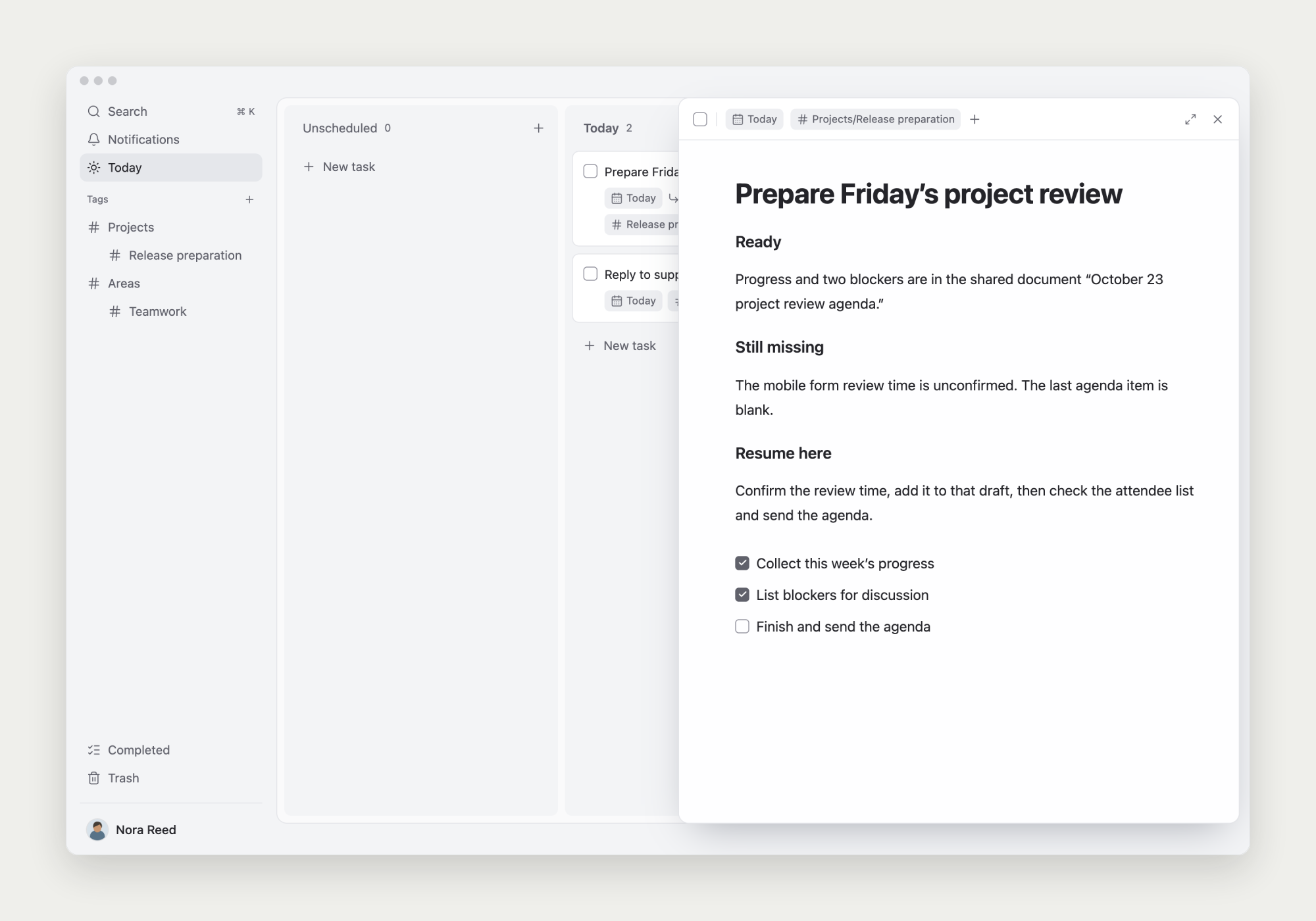
Click a task title and type in the note. The title describes the outcome; the body keeps context, sources, decisions, and next steps. Your edits stay with the task.
Before stopping, write where you got to and what to do first when you return.
Choose content types with ‘/’
Type ‘/’ to insert headings, lists, quotes, code blocks, tables, images, files, or tasks. Select text to apply formatting or add a link.
For materials stored elsewhere, keep the original link and explain how it relates to the current work.
Move, convert, and copy blocks
Move the pointer beside a paragraph or heading and drag its handle to reorder it. Open Block options to insert a block below, turn text into a heading, list, or quote, duplicate a block, copy it to the clipboard, or delete it.
Duplicate block creates another copy in the note; Copy to clipboard lets you take the content elsewhere.
Edit tables and code blocks
After inserting a table, click a cell and use the row or column menu to insert or delete rows and columns and toggle header rows or columns. The cell menu can merge selected cells, split merged cells, or delete the table.
In a code block, choose or search for a language to apply syntax highlighting, and use Copy code to copy its contents.
Insert an image or file
Choose Image or File in the ‘/’ menu and upload the material. Use images for screenshots or comparisons, and files for downloadable attachments.
Wait for uploads to finish before leaving. Open images to preview them and add captions that explain what they show.
Paste screenshots and manage images and files
You can paste screenshots from the clipboard or drag images and files into the note, as well as use the slash menu. Wait for uploads to finish before switching devices or leaving the page.
Select an image to resize it using its edge handles, align it left, center, or right, add a caption, preview, download, replace, or delete it. Replace is useful for updating a screenshot in place. File cards offer Open and Download actions.
Turn actionable steps into subtasks
When a step needs its own date or completion tracking, create a task from the ‘/’ menu.
Keep context in the parent note and move specific actions forward in subtasks. Notes and attachments remain after completion.