If a Slack message requires work, turn it into a task with an action, a result, and a link back to the specific message. Put the agreed deadline in the task and use a separate start date if work needs to begin earlier.
Choose what should happen after reading
Save a useful example you only want to look up. Use Slack’s reminder for a small action such as replying at 3 p.m. When the request needs work in another app or more than one step, give it a slot on your work board.
| Message | Where it goes | Why |
|---|---|---|
| Example of an approved price table | Slack saved items | Useful to find later |
| Please confirm the logo today | Slack reminder | One reply closes the loop |
| Please update the price and send a PDF by Friday | Scheduled work task | The work needs checking and delivery |
Slack’s menu on a message or file can set a reminder. Look for saved items and to-dos in your workspace; Slack has been rolling out changes to those areas.
Keep the decision and link to the rest
In the pricing thread, the initial message asks for Friday delivery. A follow-up changes the annual price but keeps the monthly price. Copy the link to the follow-up and summarize those two decisions so you can resume even after more replies arrive.
For a team request, write down who agreed to send the result. Confirm the owner or due time in the thread when it is ambiguous.
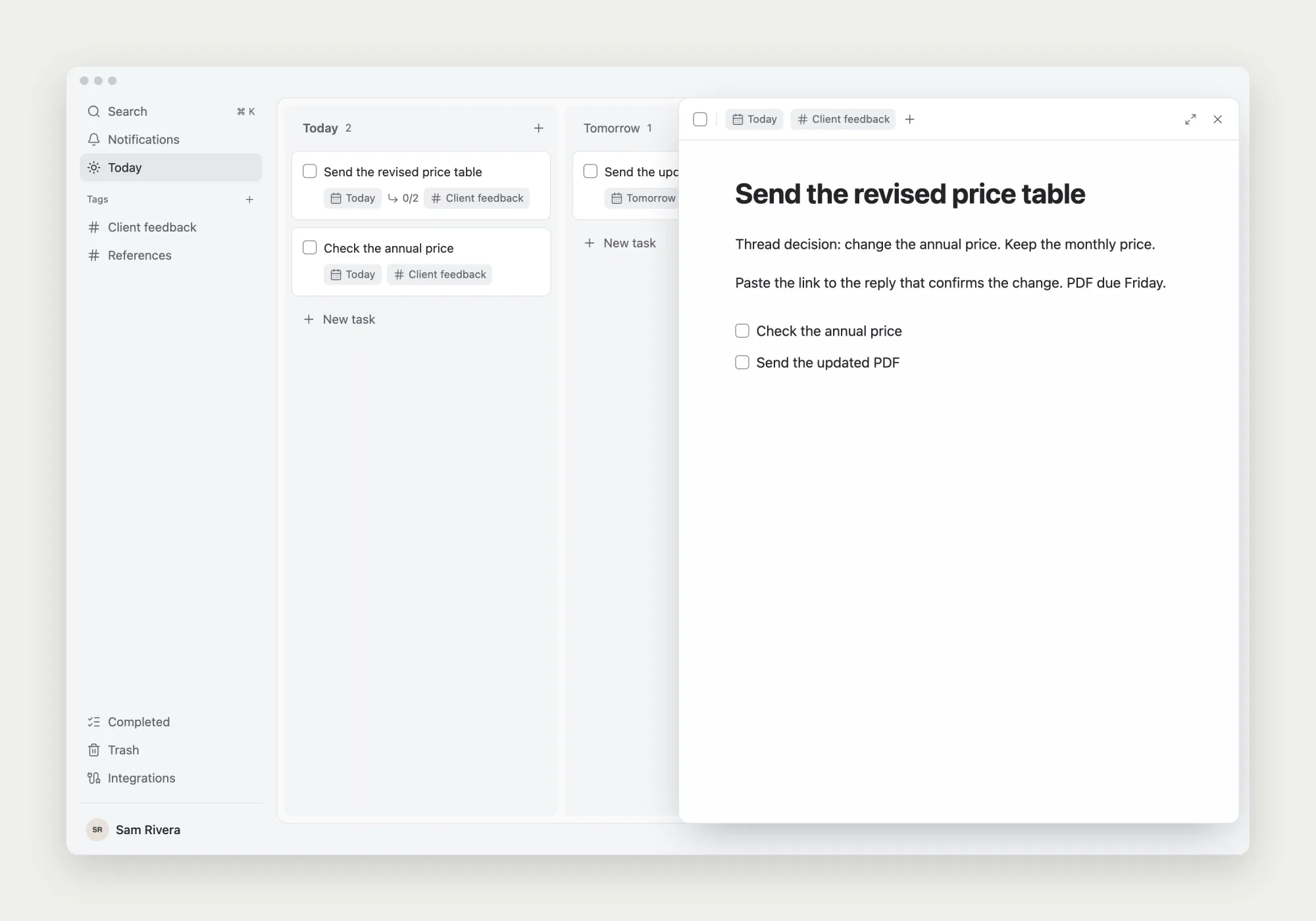
If the thread contains sensitive material, keep only the action and the link in the task. Readers still need access to the original Slack conversation.
Copy a Slack-to-task template
Action and result:
Owner:
Start date:
Agreed deadline:
Slack message link:
Decision or constraint:
First step:Open the price table task in TodoNote. Schedule the price check and PDF delivery separately if they fall on different days. When the PDF is sent, reply in the originating thread and keep the delivery link with the task.
Slack help on saved items · Slack help on reminders
Create actionable to-dos from email · Keep attachments with a to-do