Claude can create a TodoNote task from a chat through a custom remote MCP connector with write permission. Start by asking Claude to show the proposed title and date. Approve that one action, then open TodoNote and verify it on the board.
Alex is discussing a release. The team agreed to check the signup flow on mobile, while a new headline is still under discussion. One item is ready to plan. A quick preview helps separate the commitment from the idea.
Connect TodoNote and check the permission
In Claude’s Connectors settings, add a custom connector with the address https://web.todonote.app/api/mcp. Open the connection, sign in to TodoNote and authorize the access needed to create tasks. A workplace account may require its administrator to add or enable the connector.
The read-only option is enough to review existing tasks. For this example, choose read and write access and enable the connector in the conversation. Confirm the account shown in the authorization dialog before continuing.
Preview, confirm, then check the board
| Stage | What to check |
|---|---|
| Preview | “Test mobile signup” with your chosen start date |
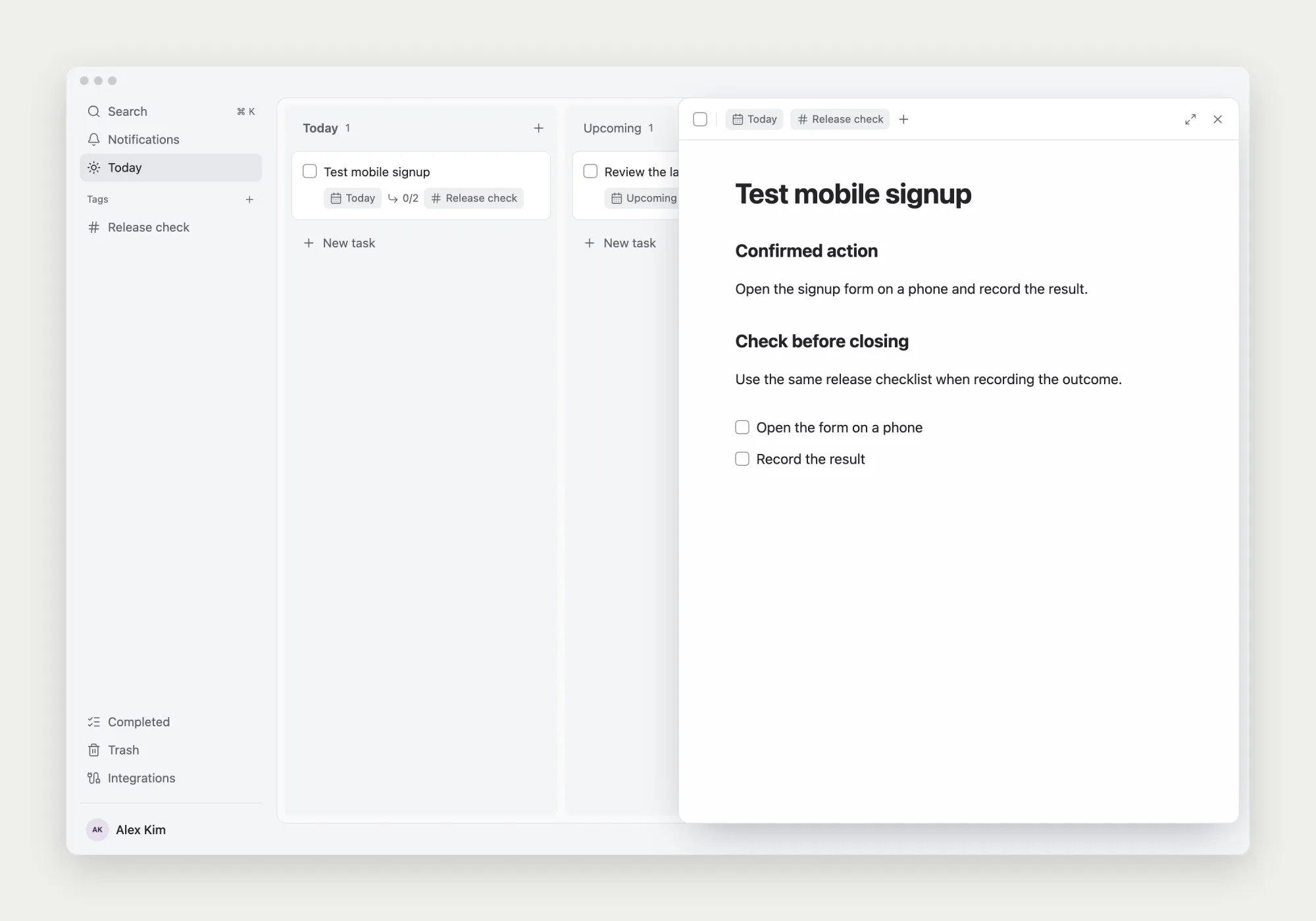
| Confirm | One task in TodoNote, with the other idea left in chat |
| Verify | The new task opens from the chosen date on the board |
Copy a prompt for the first task
Replace the sample date with the day on which you plan to do the work, using YYYY-MM-DD. Run the prompt in the conversation with the connector enabled. Review the proposed title and date, then send a second message confirming the exact entry.
Open TodoNote and find the new task by its title or date. If the item is missing, check the connected account, the chat’s connector setting and write permission before trying again. If an earlier attempt may have succeeded, search for the title first.
From this discussion, show me one proposed TodoNote task for the confirmed mobile signup check.
Use the title “Test mobile signup” and the start date YYYY-MM-DD.
Show the title and date first. Wait for my confirmation before creating it.
After confirmation, create exactly one task and report its title and start date.TodoNote’s create_task uses the start date for board placement. You can add a deadline separately when there is a real delivery commitment.
How to give an AI agent the context from existing tasks and notes
References · Claude Help Center · Remote MCP · Connect AI tools through MCP