A due date records when the task is due. A due reminder schedules a notification. In TodoNote, open the incomplete task, check the due date, and choose a reminder option. Then check whether it has finished syncing.
Work backward from Friday’s deadline
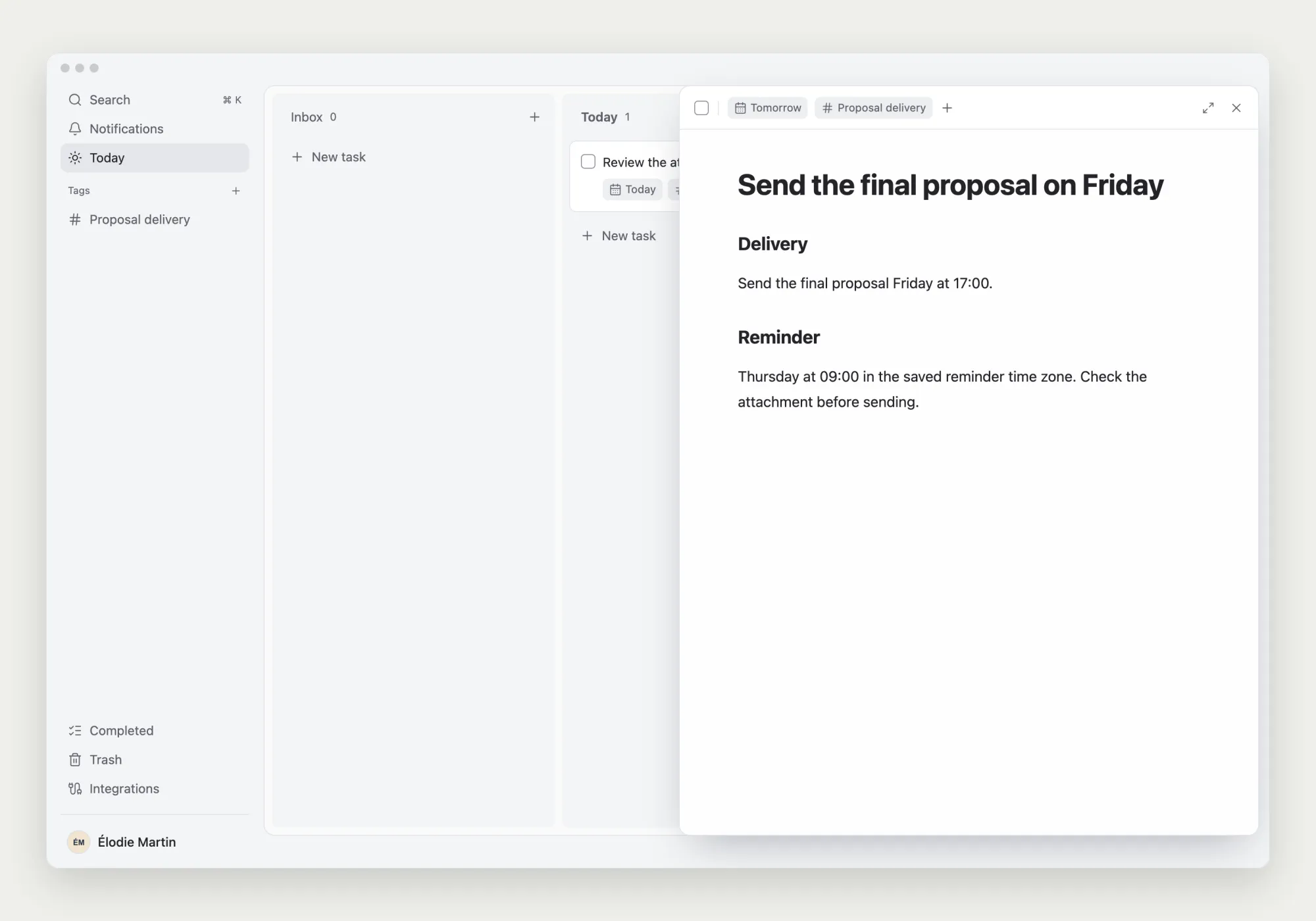
Élodie needs to send a proposal Friday at 5 p.m. She sets that as the task’s deadline and selects “one day before” so she can check the attachment on Thursday.
TodoNote’s due reminder fires at 9 a.m. on the selected day in the time zone saved with the reminder. In this case it’s Thursday at 9 a.m. Changing the app’s time zone later leaves the saved reminder’s zone in effect. TodoNote’s reminder settings
If the reminder time has already passed, select an available future option. After moving the due date, open the date control again and verify the new reminder time and status.
Check the notification in order
| What you see | What to check |
|---|---|
| No reminder selected | Set it in the date control on an incomplete task |
| Waiting to sync | Reconnect and wait for the scheduled status |
| Reminder in Notifications, no desktop popup | Enable desktop notifications, check system permissions and Do Not Disturb |
| Using the web app | Open Notifications in the sidebar |
A popup can be hidden by system settings while the reminder remains in the app’s Notifications page. The web app keeps reminders in that page.
On desktop, enable notifications in TodoNote, allow them in your operating system, and send a test from Notifications. Keep the app window open for delivery.
If the test popup appears but the task reminder is missing, return to the task and confirm its due date, reminder option, and scheduled status. The test only checks the desktop delivery path.
Keep the deadline and the work date visible
If the task was already marked complete, reopen it only when the same work still needs attention. Then check the reminder on the reopened task.
Use the reminder as a cue to check the proposal. Keep the actual deadline visible so a Thursday notification is not mistaken for the Friday delivery time.
For planning the work before the reminder, see the difference between a start date and a due date.