For a deadline shared across time zones, capture the agreed date, time and city. Use a timed deadline for the exact instant and choose an earlier reminder in your own workday. A date-only task keeps the same calendar date when you change views.
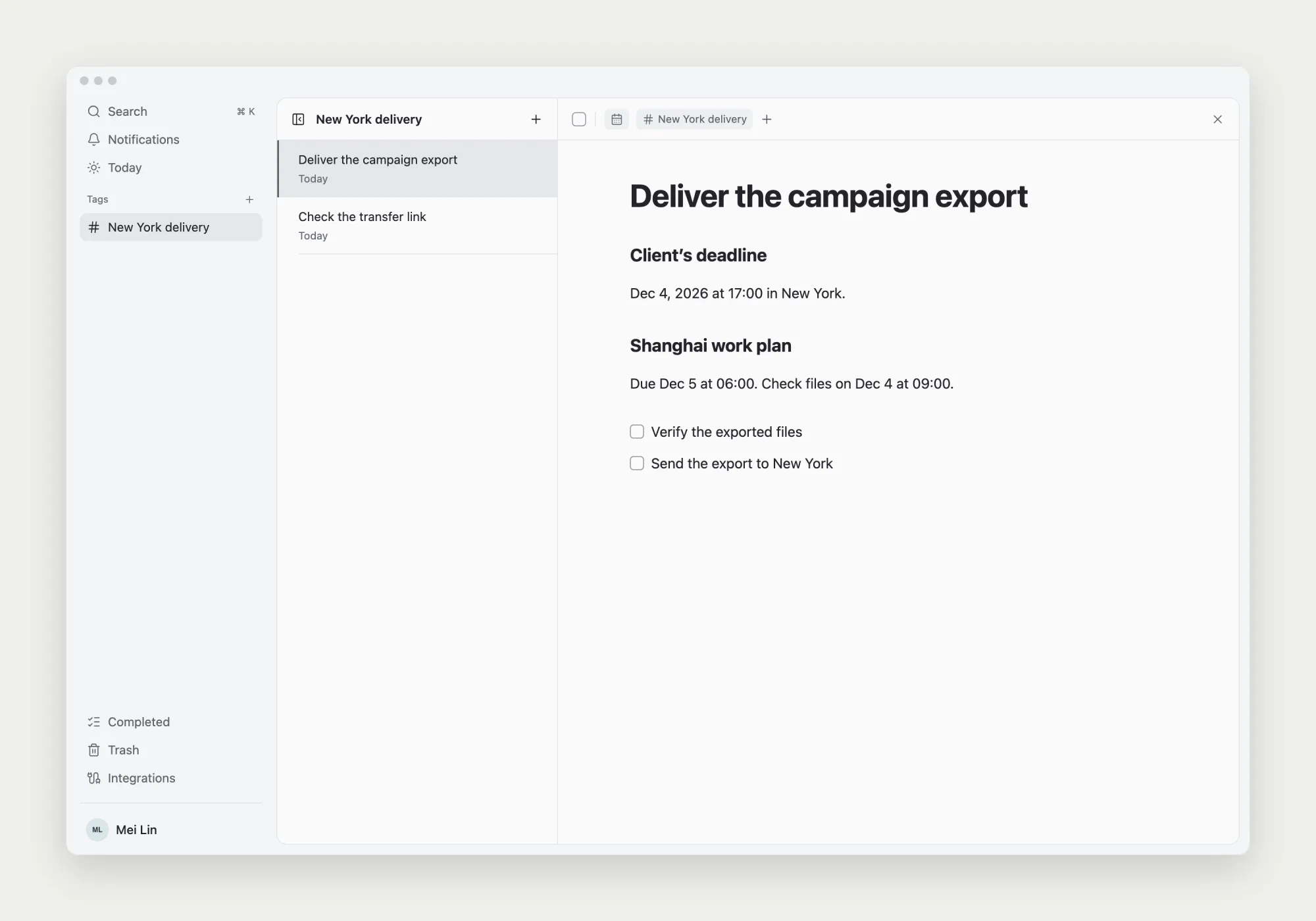
A client asks Mei to send an export by Friday, December 4, 2026 at 17:00 in New York. In Shanghai that is Saturday, December 5 at 06:00. Mei wants a reminder during her Friday morning so she can verify and send the files before she signs off.
Start with the city and the full date
Write “December 4, 2026, 17:00 New York” in the task note. Convert that exact date with America/New_York and Asia/Shanghai. New York is observing standard time on that date. Offsets can change with the season, so check the date rather than reusing a fixed offset.
If the agreement is only about a day, a date-only deadline is enough. When it includes a precise cutoff, set the time as well. Give the task an earlier start date when preparation takes time.
Check all three readings of the same example
| Setting | New York | Shanghai |
|---|---|---|
| Date-only deadline set to Dec 4 | Fri Dec 4, date only | Fri Dec 4, date only |
| Timed deadline from the client | Fri Dec 4, 17:00 | Sat Dec 5, 06:00 |
| One day early on a new Shanghai task | Thu Dec 3, 20:00 | Fri Dec 4, 09:00 |
For a recurring exchange with the same client, verify the conversion at the next daylight-saving change. A rule that worked in December may shift by an hour for the next delivery.
Set and verify a reminder
With TodoNote set to Asia/Shanghai, create a new task, choose a Friday start and enter the Saturday 06:00 deadline. Pick a reminder one day early. It fires at 09:00 in the saved time zone, so the reminder lands during Friday work hours. A same-day reminder would fall after this particular cutoff.
Look for the scheduled status after syncing. Changing the display time zone changes how a timed deadline appears. An existing reminder keeps its saved time zone, so recheck both the displayed deadline and the notification time when you travel.
Write both local readings in the note and decide when you’ll start. When the client moves the deadline, revisit the reminder as well as the due time.
How to use a start date and a deadline for the same task
References · Set dates and plan your work · Set due reminders and receive notifications